

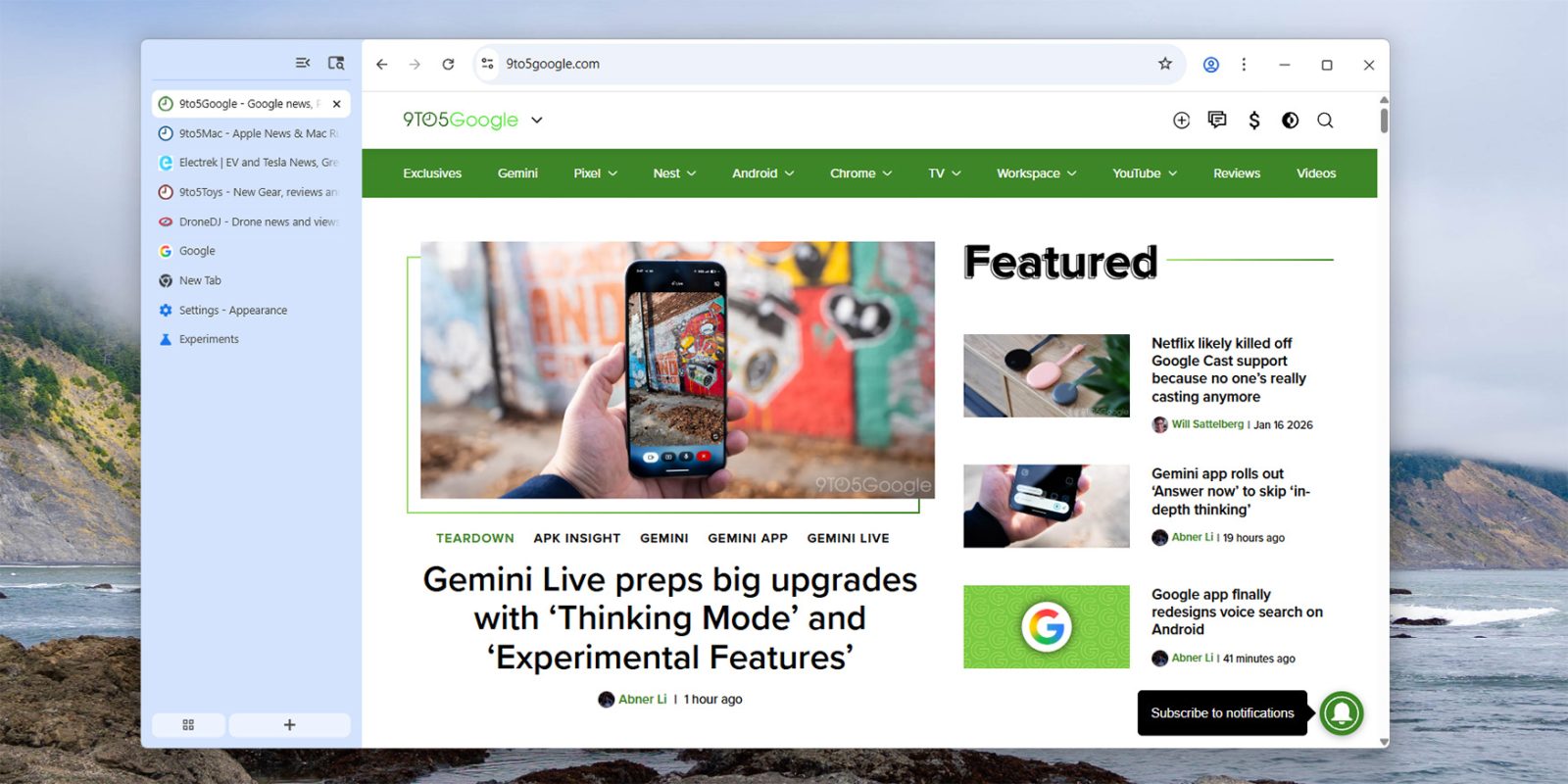
Google Chrome has made a test of its new vertical tabs feature available, and you can try it out for yourself pretty easily.
Working in dozens of browser tabs at once in not exactly uncommon nowadays, which is why quite a few browser have introduced a new vertical layout. As more and more tabs collect, this menu tends to better show what each tab actually contains.
Google Chrome is finally nearing support for vertical tabs.
In the latest Beta, Dev, and Canary releases, Google has quietly launched support for vertical tabs in Chrome through a flag. And, in action, it works pretty well.
Vertical tabs appear in a sidebar that shows the icon off to the left side, the tab’s name and data beside that, and a button to close the tab on the right side. The sidebar can either be expanded or condensed, with the latter showing solely the website icons. There’s also an option to search through your tabs and create tab groups.


To enable this feature, you’ll need to install at least Chrome v145, which is the latest version available in the Beta release track. This is a separate install from the stable Chrome browser, but available for download through Google’s website.
Once installed, you’ll first need to enable vertical tabs through Google Chrome’s flags – chrome://flags/#vertical-tabs. This is available on Windows, macOS, Linux, and even ChromeOS. Once switched to “Enabled,” simply relaunch the browser.

On relaunch, you’ll then need to go to Settings > Appearance in Chrome, and change the “Tab strip position” from “Top” to “Side.”
And that’s it!
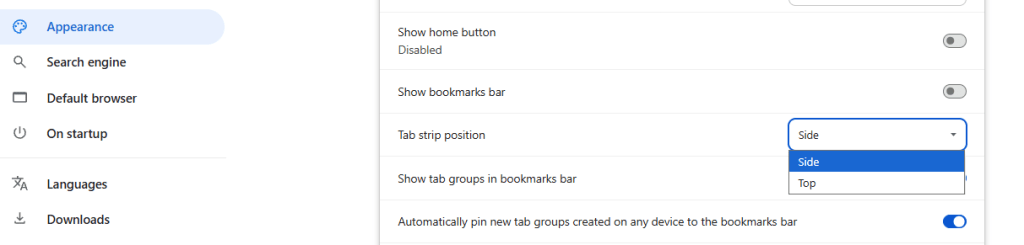
Google Chrome v145 should hit the stable track in February, but since the vertical tabs feature isn’t enabled by default, it may or may not actually go live in that version.
More on Google Chrome:
- Chrome for Android rolling out Reading mode redesign that’s easy to trigger
- Chrome for iPhone rolling out built-in Gemini integration
- Google explains Gemini in Chrome’s agentic browsing security, protections
Follow Ben: Twitter/X, Threads, Bluesky, and Instagram


FTC: We use income earning auto affiliate links. More.


Comments