

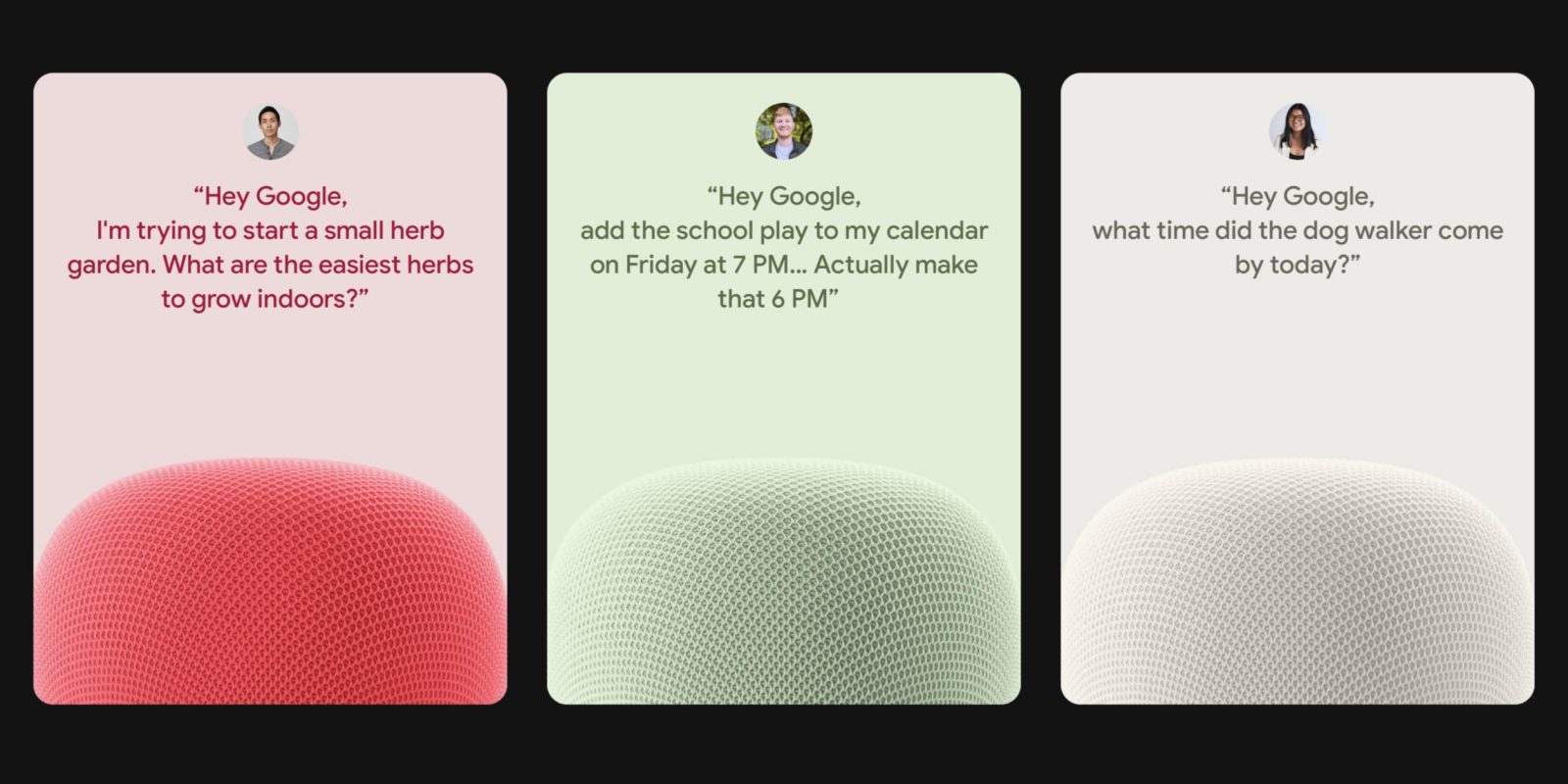
The Gemini for Home voice assistant started rolling out at the end of October, with Early Access availability currently quite limited. A trick today does not enable the new LLM-powered assistant, but does give you access to the new Gemini voices.
This trick shared on Reddit by u/Siciliano777 involves entering a URL into your web browser on Android or iOS. It opens the Google Home app and triggers the Gemini for Home voice assistant set-up process.
googlehome://assistant/voice/setup
If you’re using Chrome, select the second option (as depicted below) because the first just performs a Google Search. If you see a “Continue to Home?” prompt, tap “Continue.”


This will open the Google Home app and trigger the set-up workflow. Google’s example prompts cover:
- Expert brainstorming: Get expert advice, learn about new topics, or get ideas for your latest project, just by talking
- Daily tasks, done: Get support for your day, from meal planning to scheduling, and so much more
- Ask your home: Control multiple devices at once, or subscribe to Google Home Premium to catch up on everything that happened around your home


Then there’s the “Upgrade” screen that explains how this permanently replaces Google Assistant, while you have to “Acknowledge” several disclosures. The next step lets you choose one of ten “natural-sounding voices that have realistic pacing and intonation”:
- Amaryllis: Bright • Higher voice
- Bloom: Calm • Mid-range voice
- Calathea: Australian accent • Higher voice
- Croton: Smooth • Deeper voice
- Fern: Warm • Higher voice
- Magnolia: Calm • Deeper voice
- Oxalis: Bright • Mid-range voice
- Pothos: Engaging • Mid-range voice
- Violet: British accent • Mid-range voice
- Yarrow: Warm • Deeper voice
Old vs. new


Top comment by Adanan Khan
Doesn't work for me in the UK. Just before the 'Choose a voice' screen, a toast pops up saying 'Unable to save settings'. And then I just get the 2 Orange and Red options for the voices.
The final two steps are response filtering and “Voice access to camera history.”
This trick just enables a new voice on top of the existing Google Assistant. You can confirm by asking it “Hey Google, who are you?”:
“I’m your Google Assistant. How can I help you?”
Additionally, going to Home settings in the app will still show “Google Assistant” instead of “Gemini.”
The new voices are fun, but again this is not the Gemini for Home voice assistant. If you want to change the voice, restart googlehome://assistant/voice/setup.




FTC: We use income earning auto affiliate links. More.




Comments